Problem: too many places to keep track to things we need to do
To-do items come from so many directions and they are tracked in too many places:
Scenario 1: someone asks us something in an email
The default reaction is to keep the email in the inbox and maybe reply later, if we can remember. Until inbox zero bankruptcy, where we archive a large list of emails.
Some email apps suggest us to snooze emails that you can’t act on right now. But that’s not good either because you might have bandwidth some time between now and the time you snoozed it to, and there is no way to keep track of it during the snoozing period.
Scenario 2: a task is assigned to us at work
Whether the task is in Jira, or Asana, or Github Issues, or Notion, eventually we have so many tasks, a lot of them are just “i’ll never get to” backlog
Scenario 3: someone asks a question or requests something in a messaging app (e.g. Slack)
We might get back to them later, or maybe we’ll forget it. Some messaging apps (e.g. Slack) allow bookmarking a message, but can we remember to check those?
Scenario 4: someone asks for something verbally
🤷🏽 hopefully we can remember
Scenario 5: it’s scheduled on the calendar
So this is unlikely to forget, but can we remember to prepare for it before the event/meeting happens?
Scenario 6: during a meeting, in the meeting doc, we wrote: “Action item: i need to do …” with a checkbox
It’s likely to get lost because it’s so decentralized
Scenario 7: someone just commented in a document that mentioned us
Like the last one, too decentralized
Scenario 8: sometimes it’s just a push notification on the phone from a random app (e.g. credit card saying transaction failed, so your order is canceled)
You can keep the notification unread for a while, but often we might have too many unread notifications
This list goes on and on…
So now your to-do list is distributed across email inbox, Slack “later” messages, all the messaging apps, calendar, inbox page of different task tracking apps, phone’s notification list, your brain, etc.
What if.. no matter where the idea/request comes from, we can very quickly add it into a single place
- Of course, no one likes duplication (if it’s already tracked in my workplace’s task tracker, why do i want to track it again in another place?)
- Unless, it is super super easy to add into this centralized/single to-do system (& super easy to check it off once done)
- Then everything is in one place, and you gain the muscle memory of “every time I need to remember to do something, i add it here”, and “i always check here on what needs to be done”
- The key is
fastest entry
Proposed solution: a Notion task database + an Apple Shortcut (iOS+Mac)
Notion database allows a lot of customization to see tasks in the most preferred way. It also allows integration!
With the Apple Shortcut, there are so many ways to enter information, whether you are on a Mac computer or an iPhone/iPad. A lot of entry methods don’t even require typing. (e.g. select existing text + a shortcut key, or ask Siri)
How does it look like
A Notion database for tasks. It can be something like this:
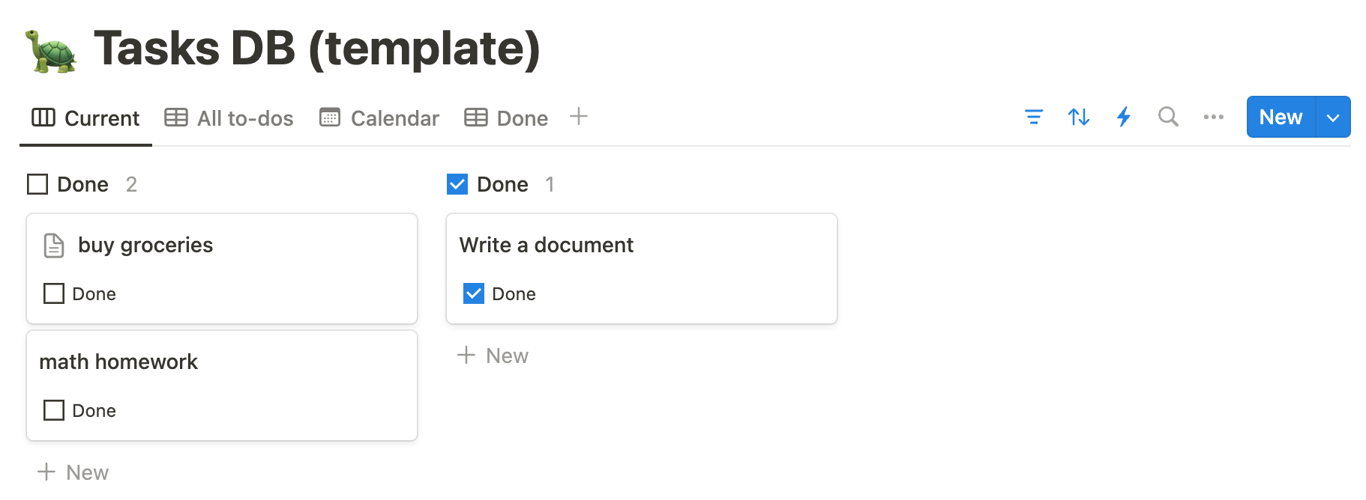
Simply check the ✅ Done to mark it as complete.
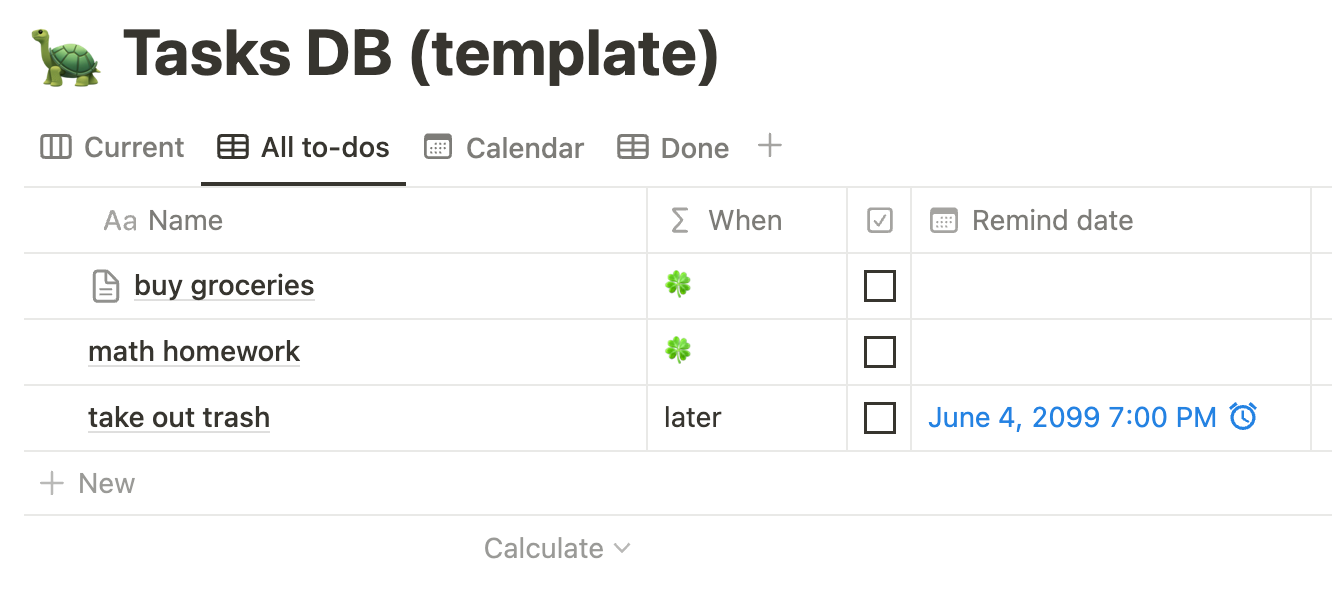

But you can also set up the task database in any other way. As long as it is a database, it will work with the shortcut (which allows super quick entry and is main point of this system)
How to add things super quickly ⚡
On Mac OS, select any text, right click → Services → Add to-do
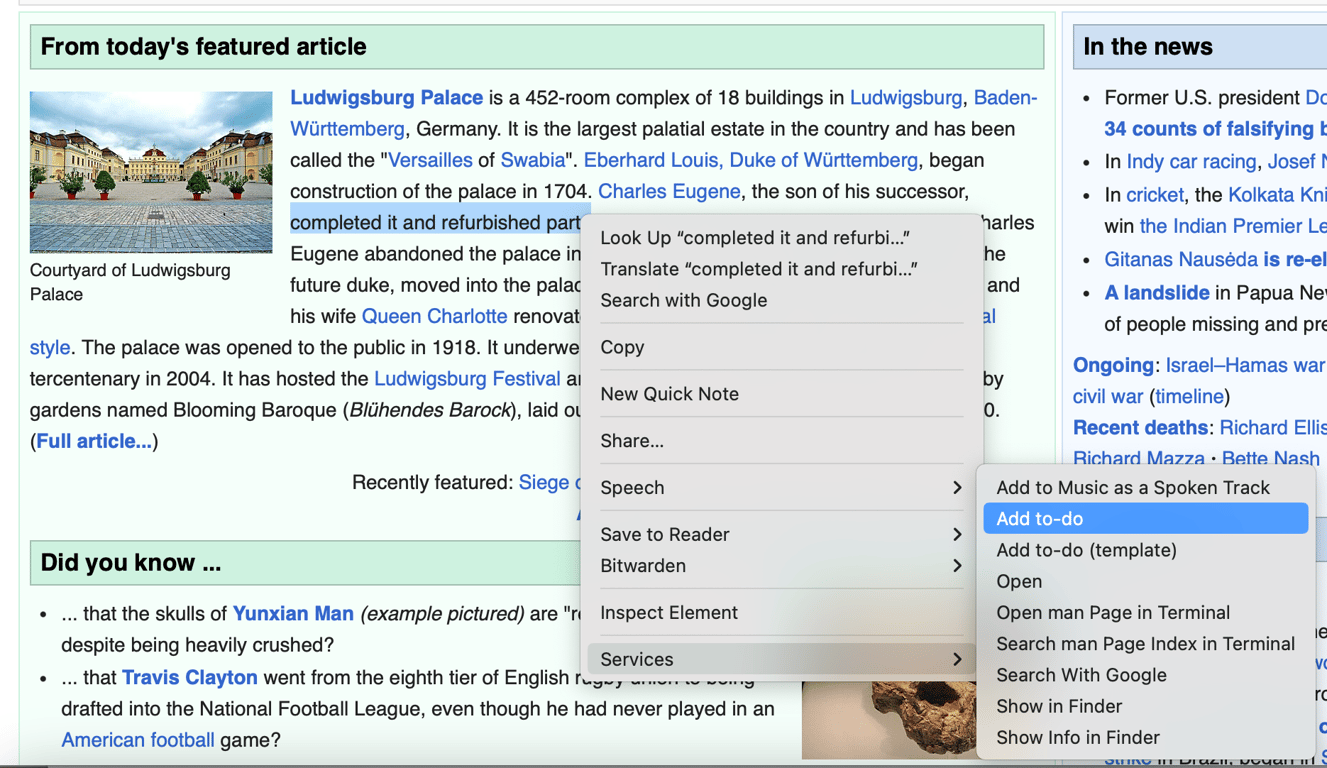
In apps where right click menu doesn’t have “Services”, select some text, use Services menu from the top bar, or a keyboard shortcut (configurable)
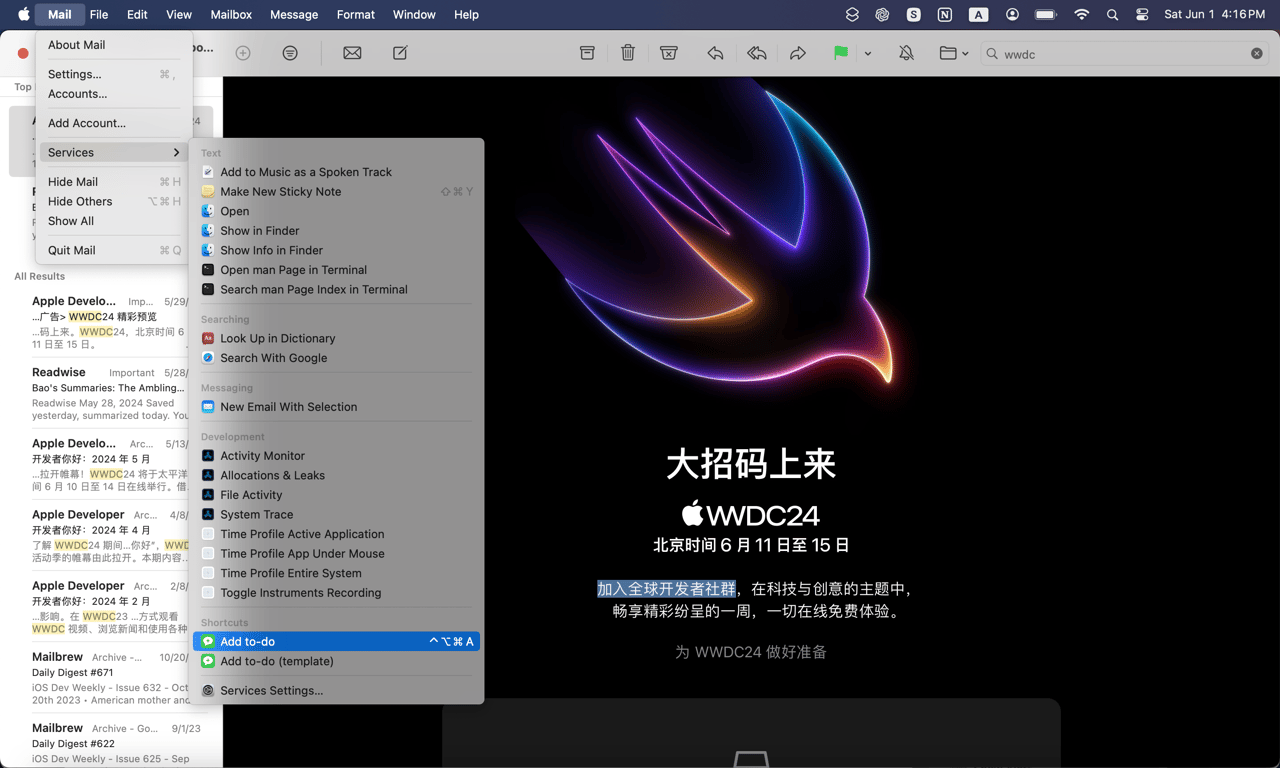
Add a task from Mac OS top Menu Bar
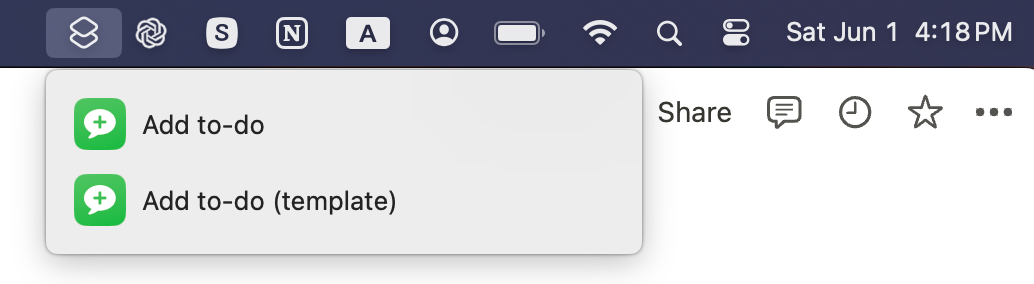
With all these entry points, after a task is created, its Notion page is automatically opened so you can add more details or set a Remind Date
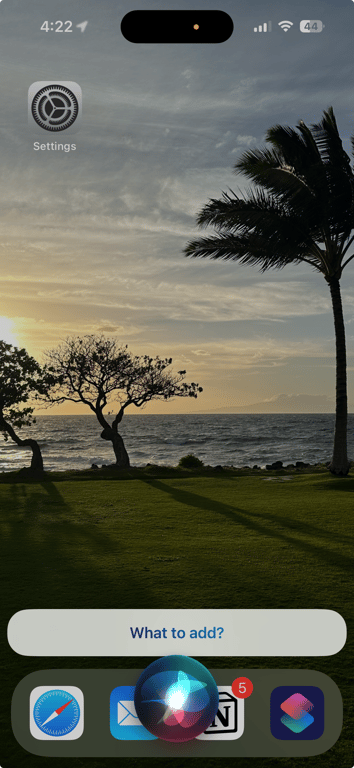
On iOS (or Mac OS), say “hey siri, add to do”
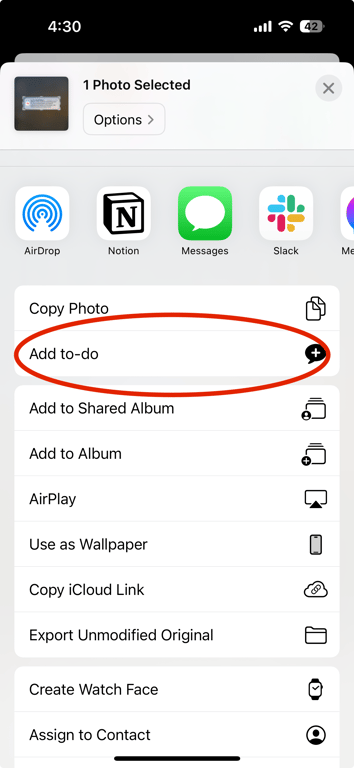
On iOS, select some text, “Share…”, then “Add to-do”
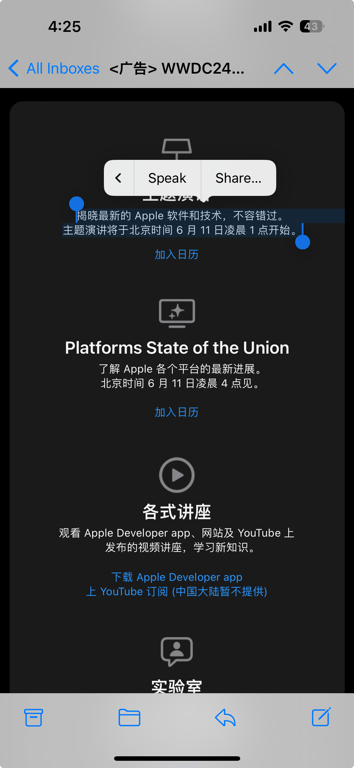
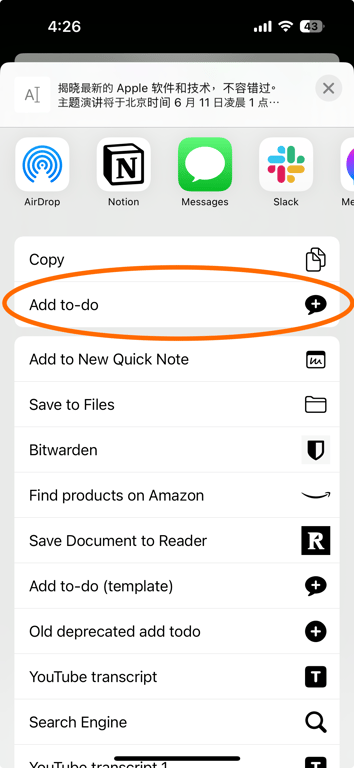
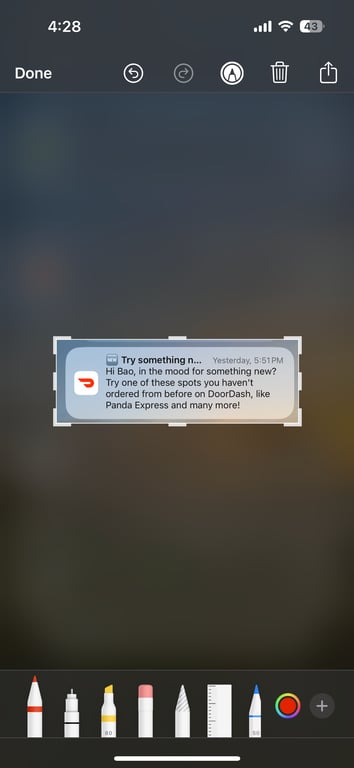
On iOS, take a screenshot, crop to the region with relevant text, share, Add to-do
(this is helpful when the text is not selectable)
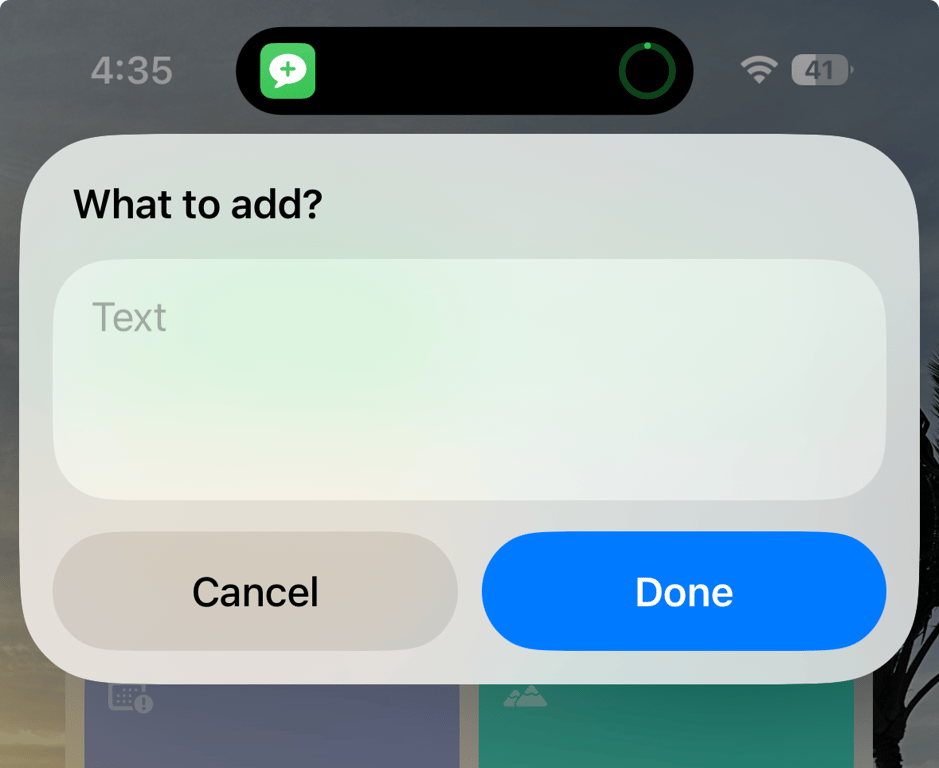
On iOS the shortcut can also be added to home screen, so just tap it to add something quick
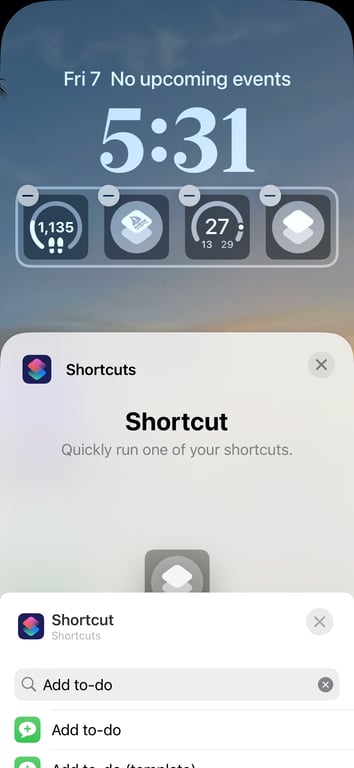
On iOS, you can also add it to the lock screen
Interested? Here’s how to set it up:
Task DB template

Features
- For a bare minimum task, just write a title and that’s it
- When a task is finished, just check a checkbox
- There is an optional “Remind date” field. Use it for future tasks. Optionally enable reminder so you can get a notification
- Tasks without a “Remind date” & with a remind date that is today or earlier will show in the “Current” view
- For recurring tasks, simply set the “Remind date” to the next occurrence date/time. Once it’s done, update the “Remind date” to the next one
- The “All to-dos” view shows all uncompleted tasks. This allows seeing some future tasks and potentially doing them earlier whenever appropriate
- The “Done” view lists all the completed tasks sorted by completion date. This is a space for easy retrospective review.
This is just an example. You can also create your own task database and customize it in anyway. The most critical piece of this system is the shortcut below.
The iOS+MacOS shortcut
How to setup
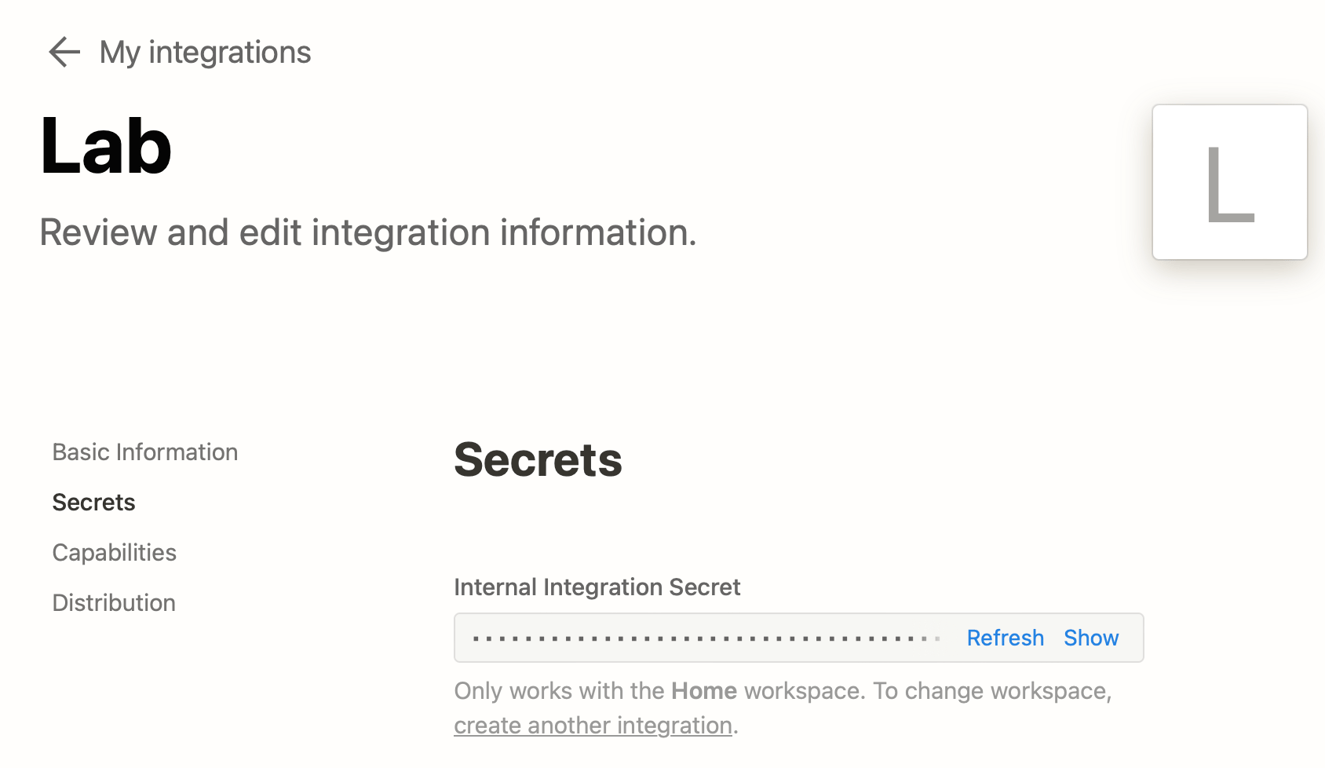
- Go to https://www.notion.so/my-integrations and create a new integration (private is ok)
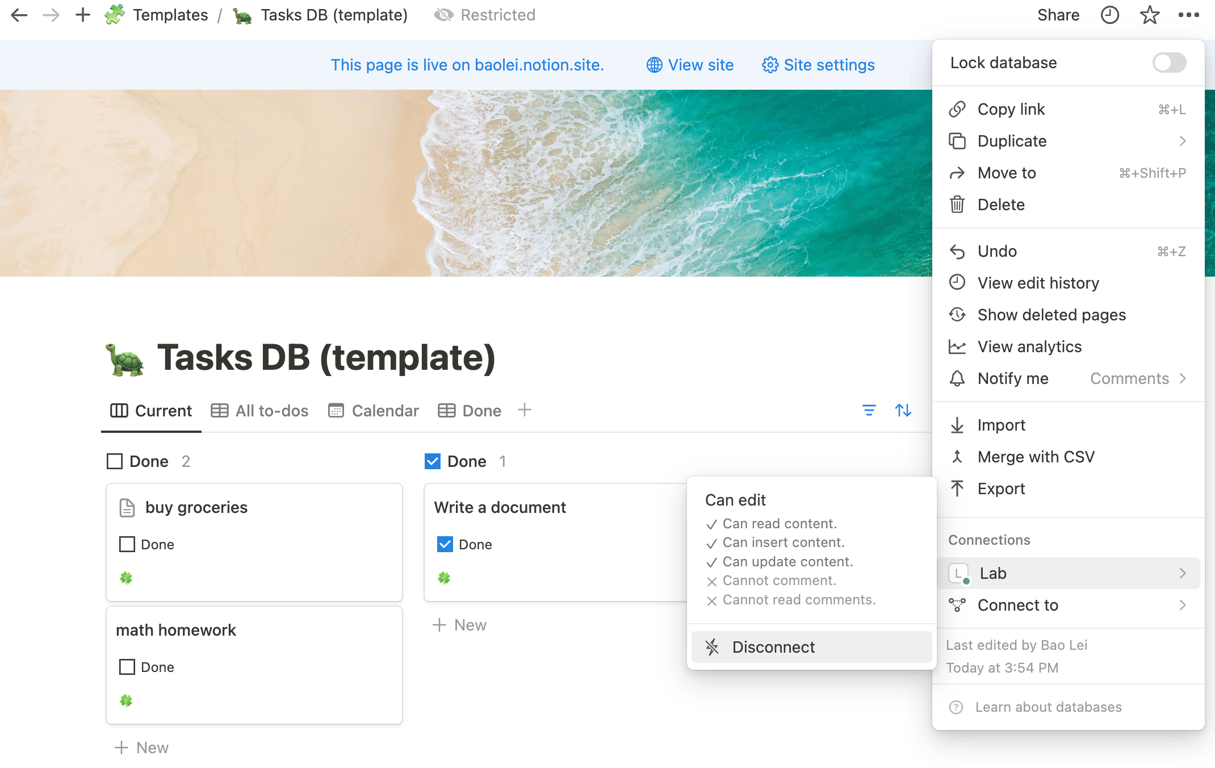
- In the Notion database duplicated from the template above, add the integration through the top right ••• menu → Connections
Visual
- Download the iOS shortcut
- Go to this shortcut, in the
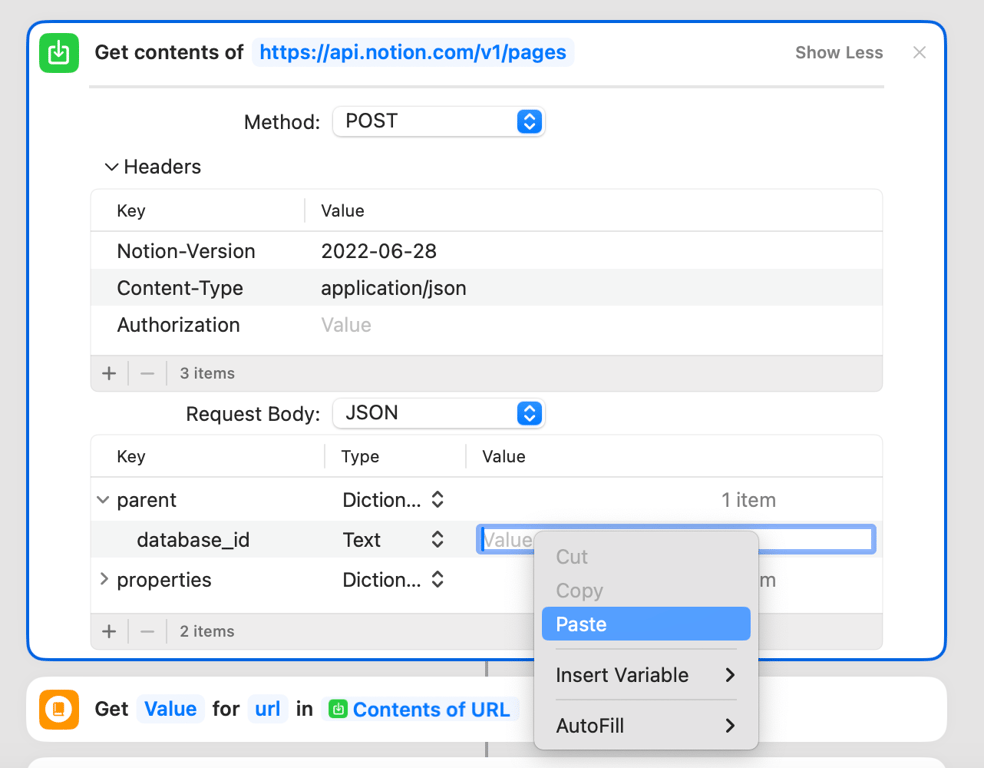
Get contents ofhttps://api.notion.com/v1/pagesstep, paste in the integration token from step 1 (Secrets > Internal Integration Token) to theAuthorizationfield in header (afterBearerand make sure there is a space betweenBearerand the secret), and then the id of the Notion database to the parent field in request body (to find the Notion database id, open the database on a web browser, the first 32-digit letter+number mix afterhttps://notion.so/is the id).
Visuals
Copy the secret
Then paste the secret after
Bearer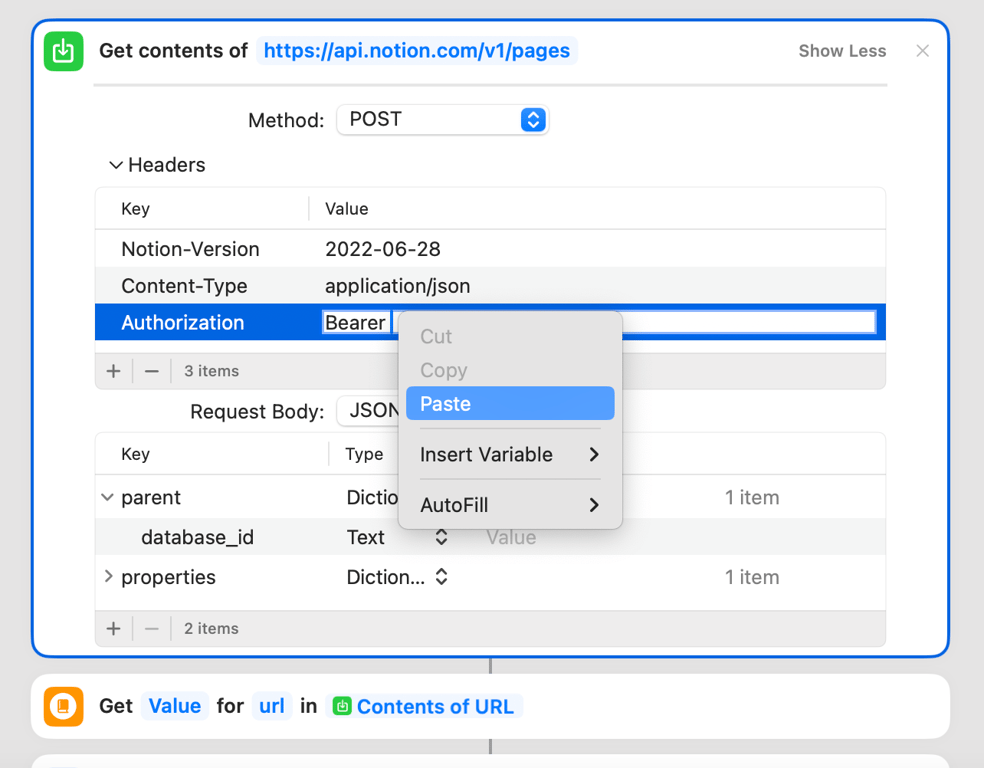
Then copy the Notion database id:
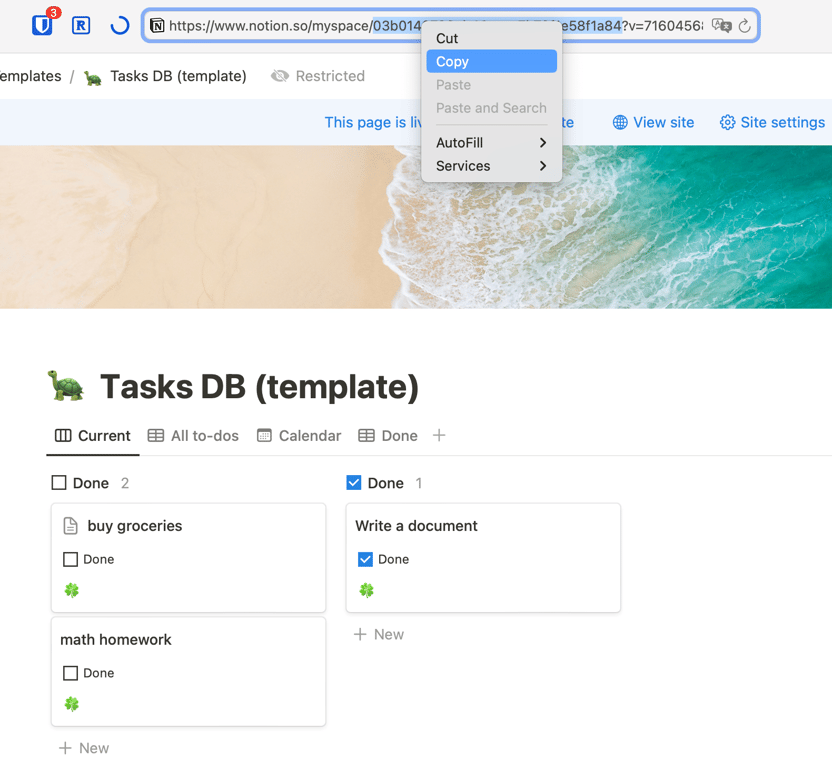
Then paste the database id into the shortcut:
- Run the shortcut, it should create a new record into the database
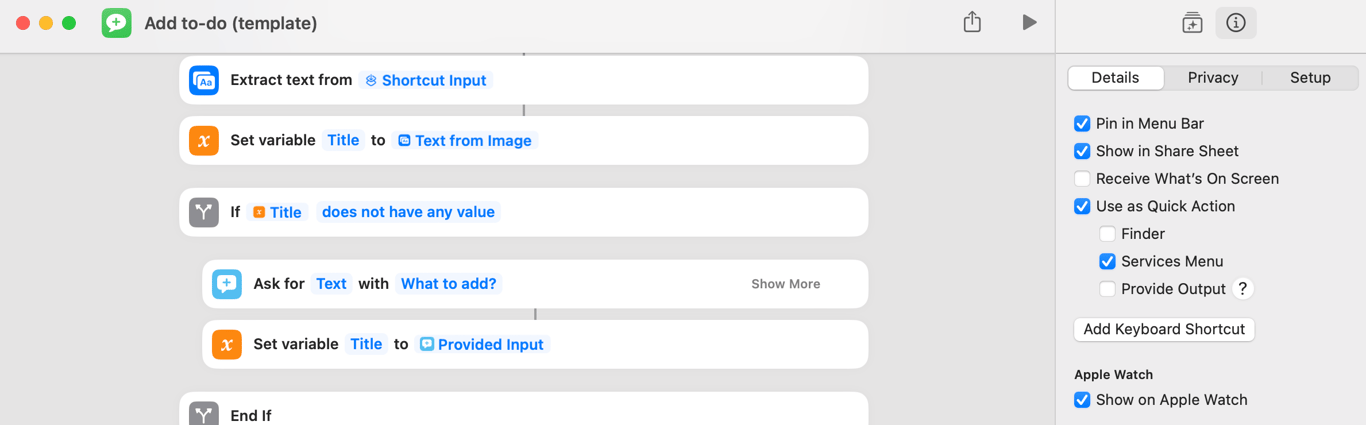
- Optionally, set a keyboard shortcut from right side panel → ℹ️ → Details
Visual
- Tip: enable iCloud to make sure that the shortcut is in sync across iOS & MacOS.
 Made with Bullet